![logo-1.svg]](https://help.carpages.ca/hubfs/logo-1.svg)
Video Guide and Steps Below
Step 1: Open Background Studio
- Log into your Carpages Dashboard
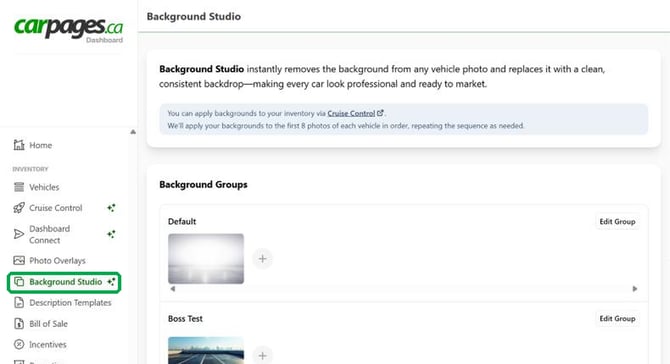
- In the left-hand menu, click Background Studio
- You will see all of your Background Groups, each with its images
Step 2: Create a New Group
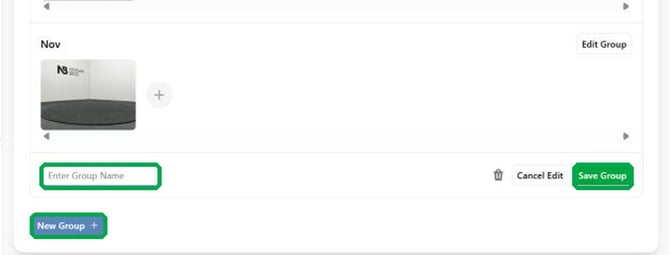
- Scroll to the bottom of the Background Studio page to find New Group
- Type a name for your group, for example "Showroom" or "Winter Sale"
- Click Save Group
Step 3: Add Your Images
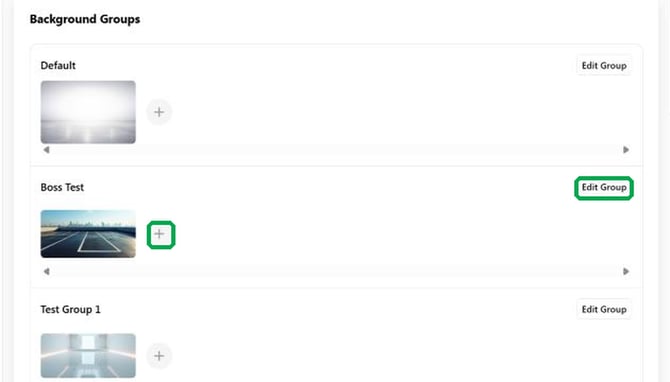
- Find your new group in the list and click the + button next to its images
- Choose the background images you want to upload
- Add several images to a group so your photos get a little variety. Each group's images are used in order and repeat
- Click Save Group when you are done
Step 4: Rename or Delete a Group
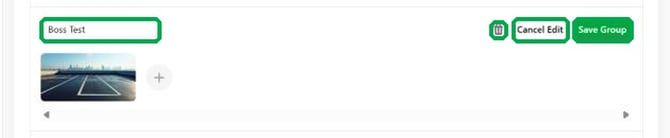
- Click Edit Group on the group you want to change
- To rename it, type a new name in the name box
- To remove an image, click its trash icon
- Click Save Group to keep your changes, or Cancel Edit to leave things as they were
Step 5: Use Your Group in Cruise Control
- Go to Cruise Control and create or edit a rule
- Choose which vehicles the rule applies to, or check Apply to All Vehicles
- Under Actions, click Add Action, set What to Change to Photos and Action to Replace Background
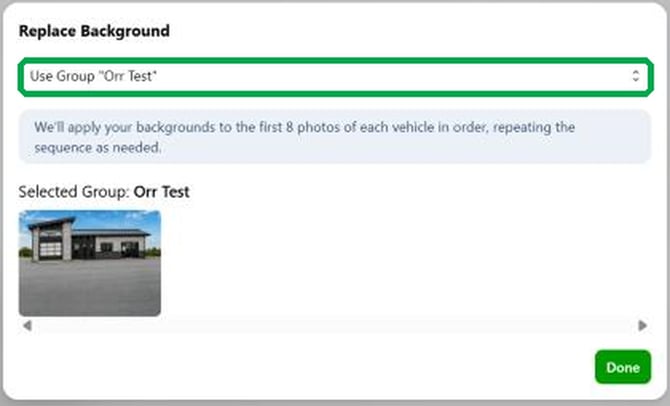
- Click Configure and choose your group from the dropdown, for example Use Group "Showroom"
- Click Done, then Save the rule. Without Done and Save, the background will not apply
Tips for Great Results
- Use high-resolution backgrounds. Higher quality gives better results
- Make sure at least 50% of the image shows floor or ground so the vehicle sits naturally in the scene
- Keep backgrounds clean and uncluttered so the focus stays on the vehicle
- Create one group per look, such as Showroom, Outdoor or Seasonal, so each rule can use the right one
- Photos are processed in order and your group's images repeat, so add a few varied images for a natural mix
FAQs
Can I create more than one custom group?
Yes. Create as many groups as you need, for example one for your showroom and another for outdoor lots, then choose a different group in each Cruise Control rule.
Can I delete a group I no longer use?
Yes. Click Edit Group on the group, then click the trash icon. Make sure no Cruise Control rule still uses it.
Why doesn't my background look right?
Low-resolution images or too little visible ground can cause poor blending. Aim for at least 50% floor or ground in each background image.
Related Articles
- Background Studio - How to Replace Vehicle Photo Backgrounds
- Cruise Control Overview - Automate Your Inventory with Rules
- How to Create a Cruise Control Rule
- Cruise Control Reference
- Cruise Control Tips and Troubleshooting
Still have questions? Call us at 1-866-567-2437 and our team will be happy to help.