![logo-1.svg]](https://help.carpages.ca/hubfs/logo-1.svg)
Step 1: Access Background Studio
- Log into your Carpages Dashboard
- In the left-hand menu, click Background Studio
- Here you’ll see all available Background Groups (Rooftop, Showroom, Outdoor, etc.)

Step 2: Create or Select a Background Group
- You can:
- Use an existing background group
- Or click the New Group + icon to upload your own background images
👉 Tip: Use high-quality images for best results
Step 3: Open Cruise Control (Automation Rules)
- Navigate to Cruise Control from the left menu
- This is where you control how backgrounds are applied automatically

Step 4: Enable Background Removal and Choose How It Applies
- Create or edit a rule
- Under Criteria:
-
Option A: Apply to All Vehicles
- Check Apply to All Vehicles (This will update your entire inventory automatically)
Option B: Target Specific Vehicles
- Click Add Criteria
- Example filters:
- Price range
- Make / Model
- Body type (SUV, Truck, etc.)
👉 This allows you to use different backgrounds for different types of inventory
-
- Under Actions: Click Add Action
- Set What to Change → Photos
- Set Action → Replace Background
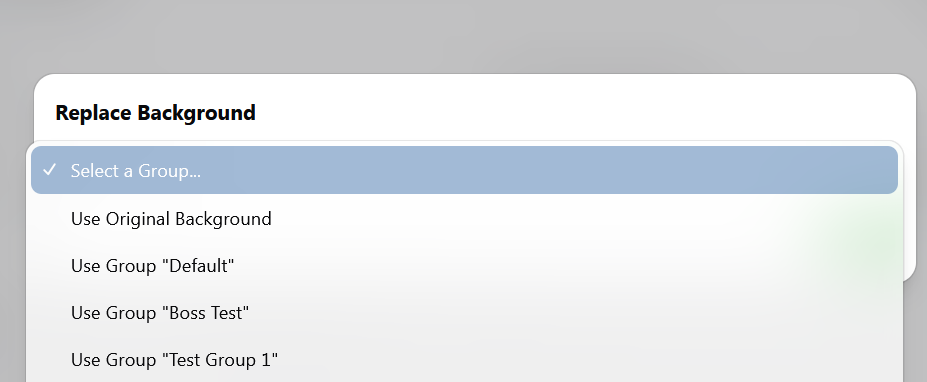
- Click Configure on the action

Step 5: Select Your Background
- Choose your desired Background Group from the dropdown
- This will determine what background replaces your vehicle photos
Step 6: Save Your Changes
- Click Done and then Save
- If you do NOT click done and save, the background will not apply
What Happens Next?
- Backgrounds will begin processing automatically
- Updates may take a few minutes depending on inventory size
Best Practices (Important)
Image Quality Matters
- Higher resolution backgrounds = better results
Ground Coverage
- Your background image should have at least 50% floor/ground visible
- This ensures the vehicle sits naturally in the scene
Keep It Clean
- Avoid cluttered or busy backgrounds
- Focus should always remain on the vehicle
FAQs
Can I upload my own backgrounds?
Yes — you can create your own Background Groups and upload custom images.
Why doesn’t my background look right?
- Low-quality images can reduce output quality
- Not enough visible ground can cause poor blending
Can I use different backgrounds for different vehicles?
Yes — use Criteria Rules inside Cruise Control to segment your inventory.
Can I change it later?
Yes — you can update or switch backgrounds at any time.