![logo-1.svg]](https://help.carpages.ca/hubfs/logo-1.svg)
Video Guide and Steps Below
Standard vs. Pro
| Feature | Standard | Pro |
|---|---|---|
| Post any vehicle to Facebook Marketplace in a click, photos included | Yes | Yes |
| Every post tracked in Carpages Dashboard | Yes | Yes |
| Alerts when a posted vehicle sells or changes price | Yes | Yes |
| One-click fix for an out-of-date post | One at a time | One at a time, or Fix all |
| MarketPulse market pricing | Yes | Yes |
| Scheduled posting of new arrivals, in the hours you choose | No | Yes |
| Sold and archived vehicles marked sold on Facebook automatically | No | Yes |
| Prices updated on Facebook automatically | No | Yes |
| Sales rep stats: who is posting what, and how often | No | Yes |
On the Standard plan, the Pro settings in the extension appear greyed out. To upgrade, select Talk to us about Pro on the Dashboard Connect page in Dealer Dashboard, or contact support@carpages.ca or 1-866-56-PAGES.
Before you start
- Your dealership is on the Dashboard Connect Pro plan.
- Each rep has the Dashboard Connect Chrome extension installed in their own Chrome and is signed in with the dealership's API key.
- Each rep posts from their own Facebook profile. Automation works per rep, and a rep only sees and fixes their own posts.
- Chrome must be open and the rep must be logged in to Facebook for anything to go out. The extension panel does not need to be open. If the computer is off or asleep, automation picks up in the next posting window.
Turn on automation
- Open the Dashboard Connect extension in Chrome.
- Select the Settings (gear) icon at the top right of the extension panel.
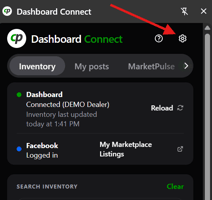
- Scroll down to the Automation section. The Pro badge appears next to the heading.
- Select the toggle for each option you want. All three are off until you turn them on.
- The first time you turn on any option for a Facebook profile, tick "I understand Facebook may restrict or suspend my account for automated activity." You will be asked again if you switch to a different Facebook profile.
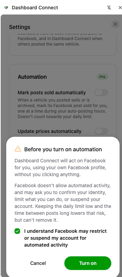
The three automation options
| Setting | What it does | Counts toward daily limit? |
|---|---|---|
| Mark posts sold automatically | When a vehicle you posted is sold or archived in Carpages, its Facebook post is marked sold, one at a time during your auto-posting hours. | No |
| Update prices automatically | When a vehicle's price changes in Carpages, your Facebook post is updated to match, one at a time during your auto-posting hours. | No |
| Auto-post new arrivals | Posts your newest vehicles for you, within the daily limit and time gap you set. | Yes |
Archived vehicles count as sold, because many dealers archive vehicles once they sell. If a vehicle was archived but did not actually sell, delete the post on Facebook yourself.
Posting hours and limits
| Setting | Default | Choices |
|---|---|---|
| Auto-posting hours | Mon to Sat, 9 am to 6 pm | Any days, 5 am to 11 pm in half-hour steps |
| Daily auto-post limit | 5 a day | 1 to 10 a day |
| Time between automatic posts | 10 minutes | 5, 10, 15, 30 or 60 minutes |
- All automation runs only inside your auto-posting hours. These follow the clock on your own computer and do not need to match the dealership's hours.
- The daily limit counts new posts only. Marking sold and updating prices never use it up.
What gets auto-posted
- Your newest arrivals first, skipping any vehicle you already have a live post of, and only vehicles that have a price and photos.
- The same post that Post to Facebook creates, using your description settings.
- Facebook's paid Promote listing option is always left off. If it can't be turned off, the vehicle isn't published.
- If Facebook won't accept a vehicle, it is skipped for 24 hours and the next vehicle is tried.
How fast it works
Dashboard Connect checks every 5 minutes during your auto-posting hours and does at most one thing on Facebook per check, in this order: mark a sold or archived vehicle sold, update a changed price, then auto-post one new vehicle. About once a day, that one action is reading your full Facebook Selling page to keep Carpages in step with anything you changed on Facebook directly.
To keep Facebook from seeing a burst of activity, there is always a pause of about 45 seconds after any change and 15 seconds between pages it only reads. Posts open in a background tab inside a collapsed "Dashboard Connect" tab group, so you can keep working.
Posts that need attention and Fix all
A live post is flagged in the My posts tab (and with an amber number on the extension icon) when its vehicle changes in Carpages:
| Vehicle in Carpages is... | Flag | Fix |
|---|---|---|
| Sold | SOLD | Mark the post sold |
| Archived | ARCHIVED | Mark the post sold |
| Expired or cancelled | NO LONGER FOR SALE | Delete the post |
| Price differs by $1 or more | PRICE CHANGED | Update the price |
With automation off, use the button on each flagged post. With Pro, select Fix all at the top of My posts to work through every flagged post, about a minute apart. If a post is already gone from Facebook, select Not on Facebook on that post to remove it from your list.
Bring in older posts
For vehicles posted before tracking started, or posted directly on Facebook, select Find my existing posts at the bottom of My posts. Dashboard Connect reads your Facebook Selling page, matches listings to vehicles by year, make, model and price (then by VIN or stock number in the description), and lets you untick any wrong matches before adding them. A large run can take several minutes.
Check your results
Open the Facebook Marketplace panel on the Vehicles page and select a vehicle to see its Facebook posts. Each post shows the account that posted it, when, whether it was posted automatically, and its status. Select View to open the live listing. The Pro panel also shows dealership totals (live now, posted in the last 30 days, sold while posted) and one row per rep.
Safety features
- Mass mark-sold protection: if one check finds more than 5 posts to mark sold, or 3 or more that are over 30% of a rep's live posts, none are marked. The rep gets a notification and a notice in My posts. A sudden wave usually means a feed problem or a mass archive, so check your vehicle statuses first.
- Facebook checks stop everything: if Facebook asks the rep to log in or confirm their account, all automation stops and a red ! appears on the extension icon. Deal with the check on Facebook, then select Resume automation in My posts.
Protect your Facebook account
Facebook doesn't allow automated activity, so a rep's account may be asked to verify its identity, limited, or suspended. Dashboard Connect lowers the risk by acting slowly, one thing at a time, from the rep's own browser and profile, and stopping at any Facebook check. It can't remove the risk.
- Start with a low daily limit and a longer time between posts.
- Lots of manual posting in a short time can also trigger a Facebook check.
- If Facebook asks you to verify your account, complete it yourself and consider pausing automation for a day or two.
Troubleshooting
If automatic posts are not going out, check these first:
- Chrome is open on the computer running Dashboard Connect.
- You are logged in to Facebook in that Chrome profile.
- The current day and time fall inside your auto-posting hours.
- The daily auto-post limit has not been reached.
- You ticked the Facebook risk acknowledgement for this Facebook profile.
- The vehicle has a price, photos and a stock number.
The status shown in My posts explains what automation is waiting on and when its next check is. Seeing about a minute between changes is normal pacing, not a fault.
Need help?
Email support@carpages.ca or call 1-866-56-PAGES.