![logo-1.svg]](https://help.carpages.ca/hubfs/logo-1.svg)
Important: One-Time Permission Request
The first time a user clicks Check Market Price, the browser shows a permission request from Dashboard Connect. You will see a message similar to the screenshot below:
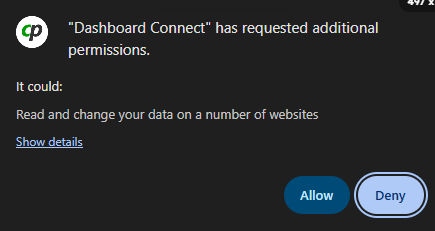
Please click Allow to enable MarketPulse.
This is a one-time permission request required for the MarketPulse functionality to work properly. Once approved, you should not need to complete this step again.
How to use MarketPulse
- Select a vehicle: Open a vehicle from the dealership's inventory in Dashboard Connect.
- Review market comparables: Click Check Market Price.
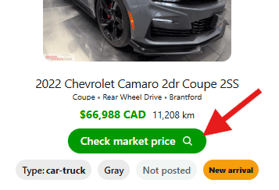
- MarketPulse opens the Market Pricing (Beta) tab and finds similar vehicles currently advertised in the market.
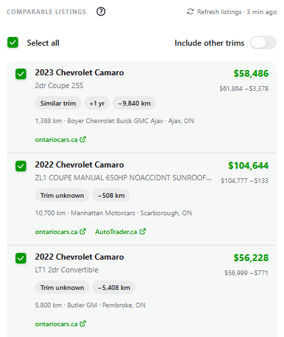
- Compare position: See how the vehicle's asking price compares with the market median and typical range. Results can be refined by year, make and model, kilometers and location, and dealers can select or deselect individual comparables.
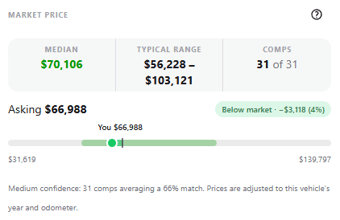
- Decide: Use the market data alongside the dealership's own strategy, costs, condition, recon, demand and sales objectives. MarketPulse informs the decision but does not set the price.
Manually check vehicles not in your inventory
Dealers can also enter a VIN, a price and the odometer reading to run a check on any vehicle. For example, a dealer considering a vehicle at auction can check what its potential sale price would be before buying. 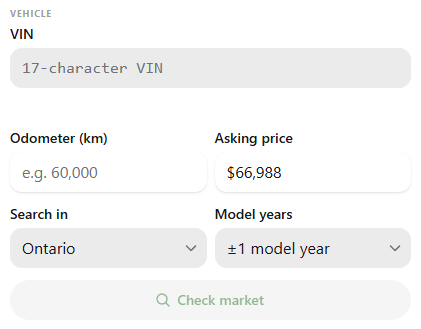
MarketPulse Visual Breakdown
The MarketPulse tab sits next to the Inventory tab in the Dashboard Connect panel.
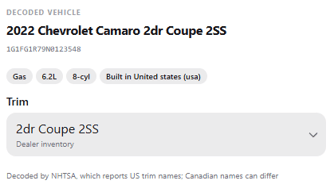
- Decoded Vehicle: Shows the year, make, model and trim, the VIN, and key specs such as fuel, engine size, cylinders and where it was built. The Trim dropdown lets the dealer change the trim being compared.
- Market Price: Shows the Median, the Typical Range and the Comps count, for example "61 of 61" comps selected.
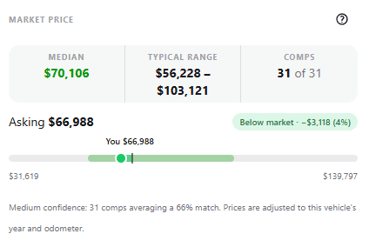
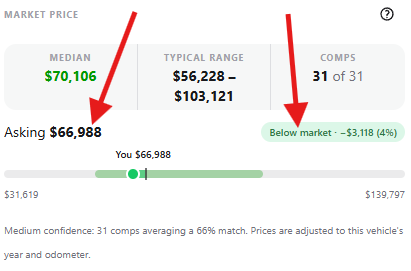
- Asking price vs. market: Shows the dealer's asking price and whether it is above or below market, in dollars and as a percentage, on a bar from the lowest to the highest comparable price.
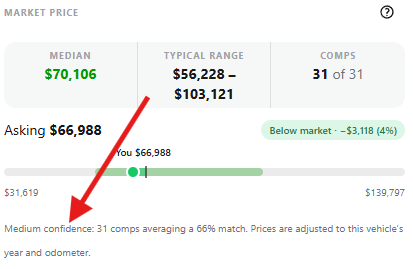
- Confidence: A note shows the confidence level, the number of comps and their average match percentage. Prices are adjusted to the vehicle's year and odometer.
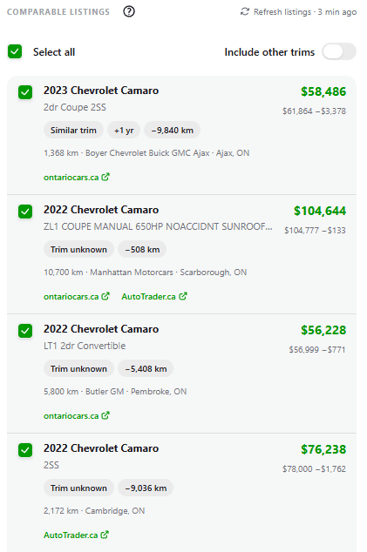
- Comparable Listings: Each comp has a checkbox, so dealers can Select all or remove individual comps. Include other trims widens the comparison beyond the selected trim, and Refresh listings reloads the comps. Each comp is labeled, for example "Same trim," and shows its kilometer difference from the dealer's vehicle.