![logo-1.svg]](https://help.carpages.ca/hubfs/logo-1.svg)
Video Guide and Steps Below
Step 1: Sign in to your website admin
Log in to your website's admin area with the username and password provided by Carpages. The blog works the same way on DealerPage+ (DP+), Silver and Gold websites.
Step 2: Find your blog posts
In the left-hand menu, click Posts, then All Posts. This list shows every blog post on your website with its title, author, category and publish date. Posts you have saved but not published are marked as Draft.
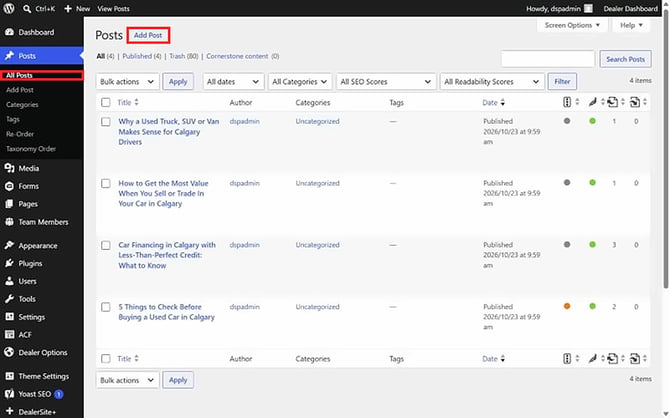
Tip: Your website's blog page (usually /blog/, and called "News & Events" on some sites) automatically shows the posts you publish here.
Step 3: Add a new post
Click the Add Post button at the top of the Posts list. You can also click + New in the top bar and choose Post.
Step 4: Add a title and write your post
Click Add title and type your headline. Then click below it, where it says "Type / to choose a block", and start writing. Press Enter for a new paragraph, or type / to add headings, lists, images and other blocks.
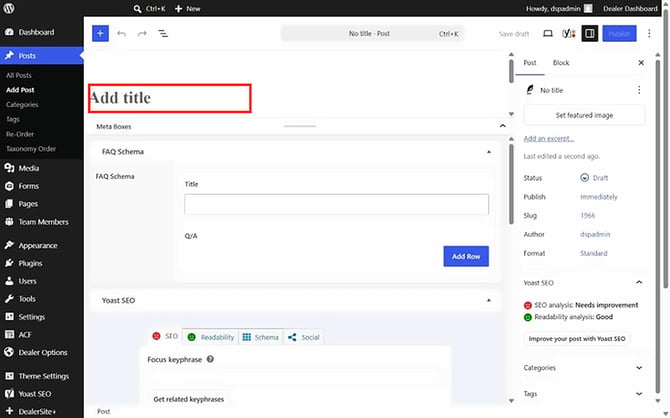
Step 5: Choose your post settings
Use the panel on the right side of the editor to set up your post. If you can't see it, click the settings icon in the top right corner.
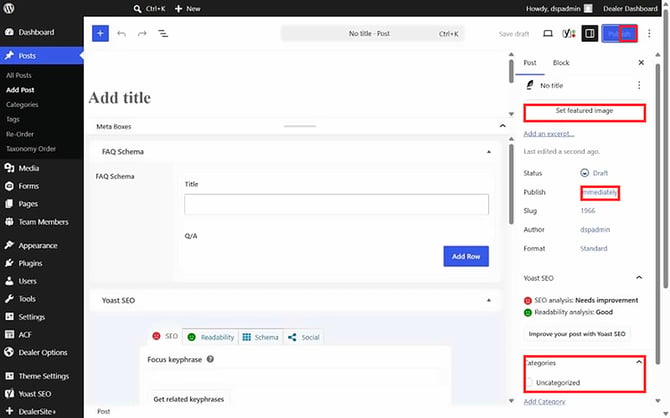
- Set featured image: the main picture shown with your post on the blog page.
- Categories: group your post under a topic such as News, Community or Vehicle Tips.
- Tags: add short keywords that describe your post.
- Excerpt: a short summary shown on your blog page.
- Publish: leave it on Immediately, or click it to pick a future date and time.
Tip: Add a descriptive title and at least a few paragraphs of original writing. This helps your post show up in search results.
Step 6: Save a draft, preview or publish
Click Save draft to keep working later, or Preview to see how the post will look. When you are ready, click Publish, then click Publish again to confirm.
Step 7: Check your blog page
Open your website's blog page in a new tab and confirm your new post appears.
Frequently Asked Questions
I can't find Posts in the left-hand menu. What should I do?
Make sure you are logged in to your website admin and not viewing the public website. If Posts still doesn't appear, contact Carpages support so we can check your user permissions.
My new post isn't showing on my blog page. Why?
Check that the post's status says Published and not Draft, and that the publish date is not set in the future. Then refresh your blog page.
Can I schedule a post for later?
Yes. In the right-hand panel, click the Publish date, choose a future date and time, and click Schedule.
Should you have any questions or concerns, please email support@carpages.ca or call 1-866-567-2437
Should you have any questions or concerns, please email support@carpages.ca or call 1-866-567-2437