![logo-1.svg]](https://help.carpages.ca/hubfs/logo-1.svg)
Step 1: Install the browser extension using either Chrome or Edge
- URL: https://chromewebstore.google.com/detail/dashboard-connect/eeoopdipbmncdlkmcjihpgbjmpeefeoc
- Pin the extension: To pin extensions in Chrome, click the Extensions (puzzle piece) icon in the top-right corner of your browser. A drop-down menu of your installed tools will appear. Simply click the pin icon next to the extension you want. It will instantly become visible in your toolbar for one-click access

Step 2: Enter Your API Key
- Open Dashboard Connect
- Click the gear⚙️ icon in the top right corner of the extension

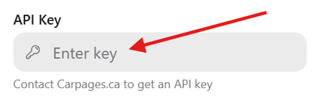
- Enter your API Key
- Click "Save Settings" then click the "X" to close the settings screen
Step 3: Browse Inventory
- Vehicles automatically appear now on the main screen
- Use filters to find the vehicle you want or use the drop down and the arrows to scan through all of your listings

Step 4: Click "Post to Marketplace"
- Select the vehicle you want to post
- Click Post to Marketplace

Facebook will open in the browser automatically and begin filling in the details and adding the images to the listing.
Step 5: Review Listing Details
Dashboard Connect automatically fills:
✅ Title
✅ Price
✅ Mileage
✅ Description
✅ Photos
Try not to interrupt the loading process with mouse clicks. Wait until everything is loaded and you see a blue "NEXT" button appear in the bottom left. Once that happens, review the listing details for accuracy and the click "NEXT"

Step 6: Publish the Listing
Review the listing once more and click Publish.
Done. Your listing has now been posted to the Facebook Marketplace. Let the leads begin!